How to set up Apple Pay in your merchant profile — step-by-step instructions
You will need
- Merchant Identifier — a unique number from Apple Developer (for example: `merchant.com.myshop')
- Two files from Apple:
.crt — Merchant Identity Certificate (for identity verification)
.pem — Payment Processing Certificate (for payment processing)
If there are no files, contact a technical specialist or an Apple Developer.
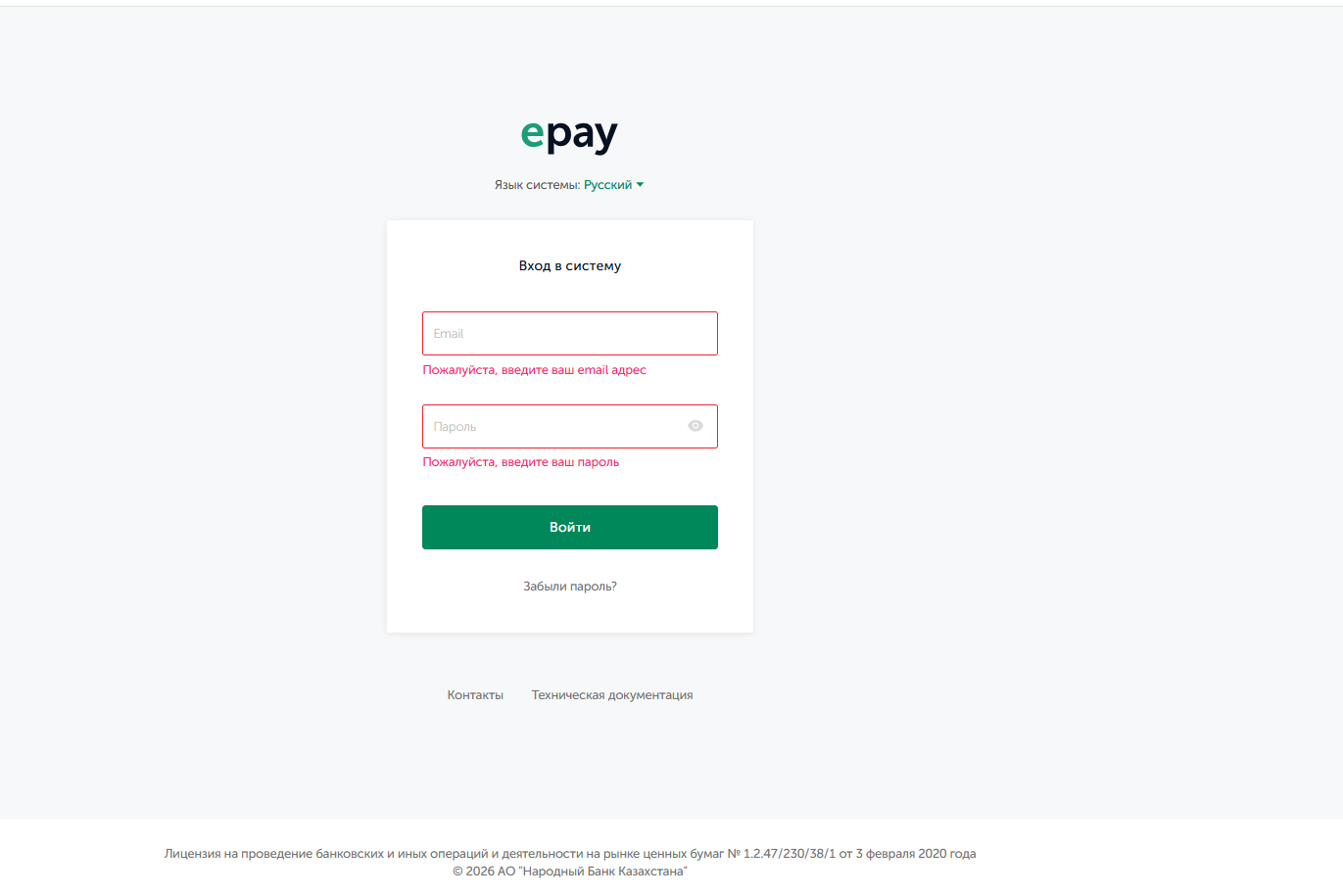
Step 1: Log in to your personal account Go to: https://epay.homebank.kz/login
Enter your username and password.
Step 2: Go to the Apple Pay section
In the left menu, find:
"Certificates" → "Apple Pay"
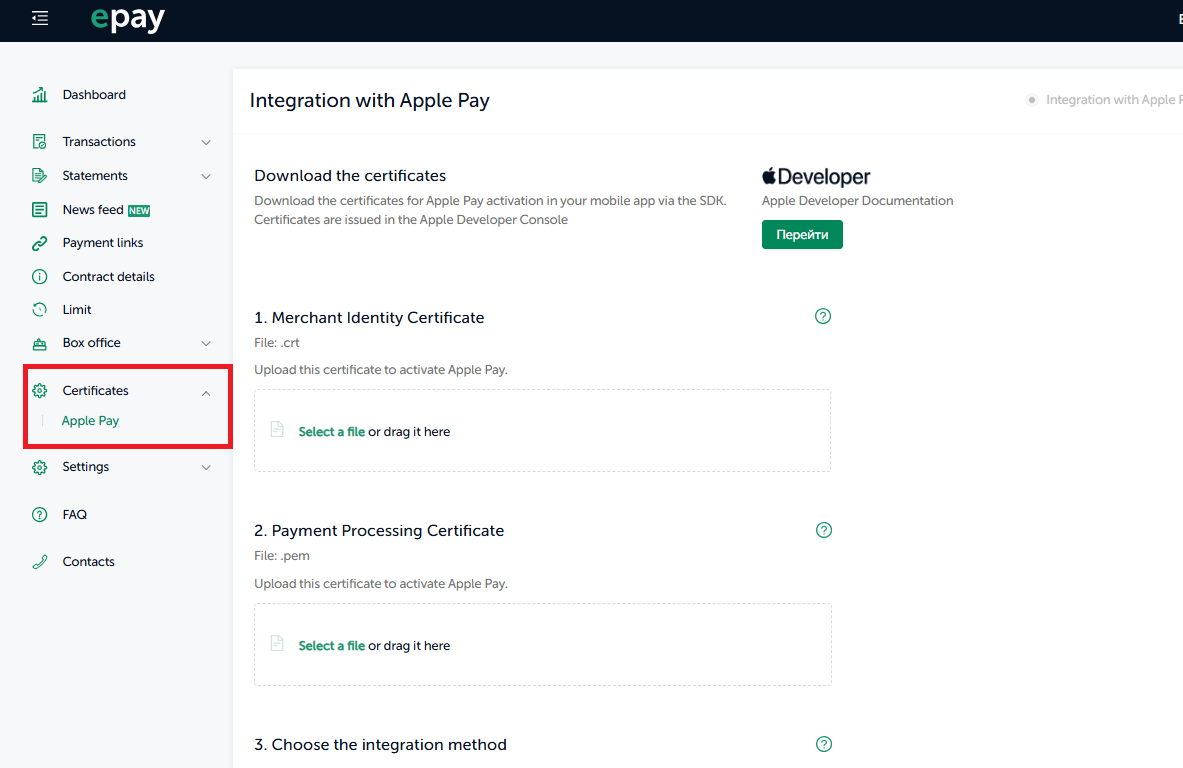
You will see two fields on the page:
- Merchant Identity Certificate
- Format: .crt
- Click "Upload file" — select the file with the extension
.crt
 After downloading, you will see:
 After downloading, you will see:
"File uploaded"

- Payment Processing Certificate
- Format: .pem
- Click "Upload file" — select the file with the extension
.pem → After downloading, you will see:
 → After downloading, you will see:
"File uploaded"

If you do not download .crt or .The pem system will show an error.
You can upload only one file of each type.
After the certificates expire — Apple Pay will stop working — you need to download a new file.
Step 3: Select the integration method
Check the boxes to indicate how you will use Apple Pay.:
- iOS SDK — if you have a mobile app for iPhone/iPad
- API — if payment is made through a website, online store, or API service
You can choose both options if you use both the app and the website.

Step 4: Specify the Merchant Identifier
In the "Merchant identifier" field, enter your Apple Developer ID. Example:
merchant.com.yourshop
Step 5: Save the settings Click the "Save" button in the lower right corner.
- If everything is correct, a notification will appear: "Apple Pay integration is active" in the upper—right corner of the page.
- The validity period of each of the certificates is visible. "Uploaded. Valid until [date]"
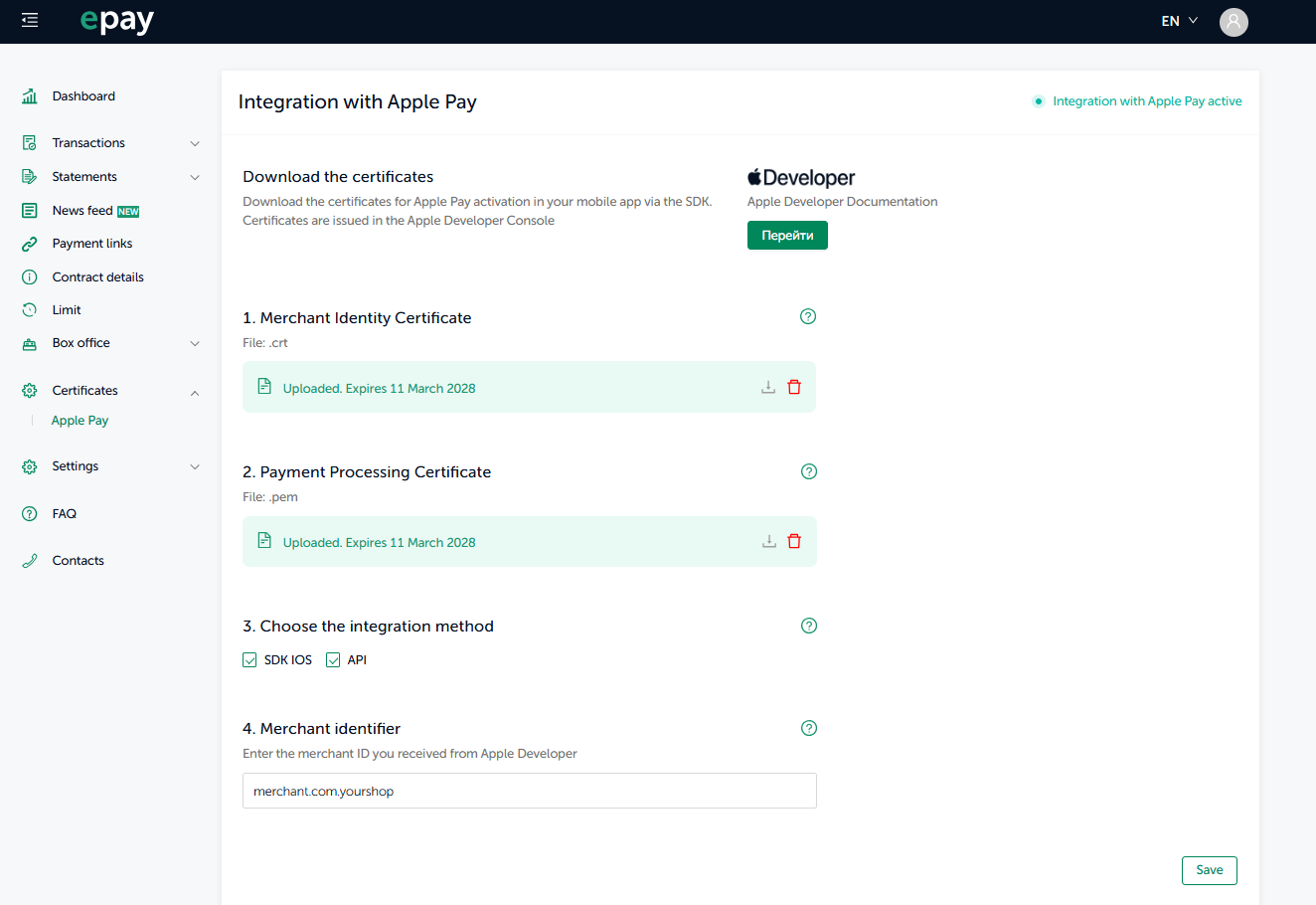
- You can download the file by clicking on the download icon next to the red trash icon.
- You can delete the file by clicking the red trash icon, after which the notification "File successfully deleted" will pop up. When downloading the file again, click on the "Save" button so that the certificate is downloaded and the integration becomes active.
What is visible on the screen now
- Both certificates have been uploaded, with an expiration date.
- Integration methods have been selected (iOS SDK /API).
- The Merchant Identifier is specified.
- Status: "Apple Pay integration is active"
Important! After the certificates have been successfully uploaded to your Personal Account, you must send a request to the technical support address dev.epay@halykbank.kz with a request to activate the payment method.
Without confirmation from support, the Apple Pay button will not be displayed on the payment page/in the application, even if the certificate is downloaded correctly.